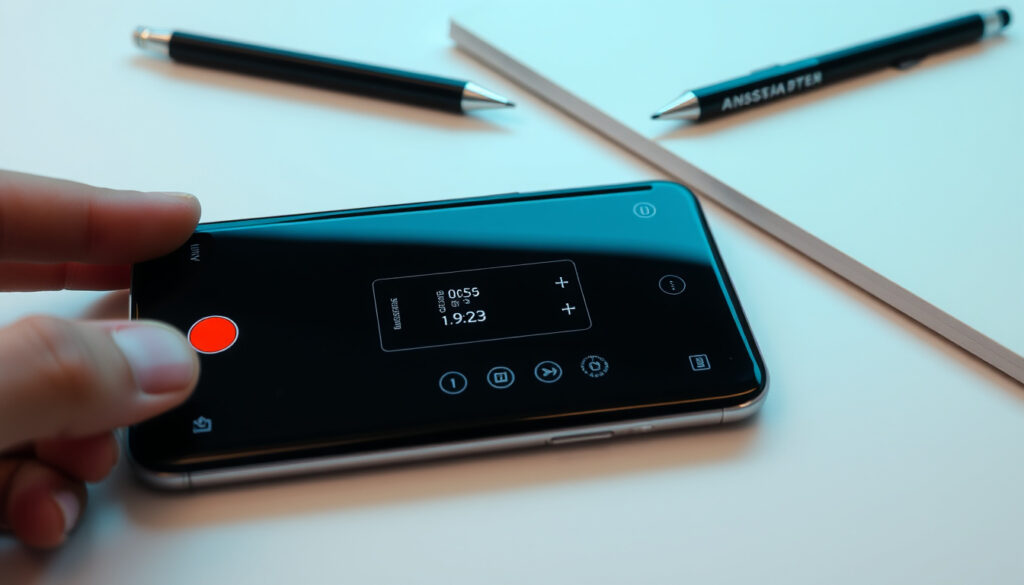
How to Screen Record on Samsung Galaxy (2025 Guide)
Samsung’s built-in Screen Recorder is a standard feature on Galaxy devices since 2019, but finding and using it varies by model. This guide covers the exact steps for S24, S23, A14, tablets, and troubleshooting for One UI Core devices that may lack it.
Screen recorder availability: Built into Samsung Galaxy devices since One UI 2.0 (2019) ·
Default location: Quick Settings panel (notification shade) ·
Supported models: Galaxy S8 and newer, A10s and newer, all Galaxy tablets ·
Audio recording options: Internal audio, microphone, or both
Quick snapshot
- Swipe down twice from top of screen (Samsung US Support (official device guidance))
- Look for Screen Recorder icon in Quick Settings (Samsung US Support (official device guidance))
- Tap Screen Recorder icon (Samsung UK Support (official user guide))
- Choose recording settings (audio, quality) (Samsung UK Support (official user guide))
- Tap Start (Samsung UK Support (official user guide))
- Tap the red notification bar or screen recorder button (Samsung US Support (record termination))
- Recording automatically saved to Gallery (Samsung US Support (record termination))
- If missing, edit Quick Settings to add icon (Samsung Gulf Support (add icon instructions))
- If not available, check One UI version or model compatibility (Samsung Gulf Support (add icon instructions))
Four key specs that matter across all Galaxy models: when the feature appeared, where to find it, which devices support it, and what audio options you get.
| Specification | Detail |
|---|---|
| First introduced | One UI 2.0 (2019) |
| Default location | Quick Settings panel |
| Supported models | Galaxy S8 and newer, Galaxy A10s and newer, all Galaxy tablets |
| Audio options | Internal audio, microphone, or both |
| Default save path | Internal storage > DCIM > Screen recordings (Samsung UK Support (storage location)) |
| Video quality settings | High, Medium, Low (adjustable in Settings > Advanced features) |
| Front camera bubble | Available on some supported devices (Samsung US Support (camera bubble)) |
| Drawing while recording | Tap Pencil icon to draw; tap again to stop (Samsung US Support (draw feature)) |
Where is my screen record button on Samsung?
Nearly every Galaxy user can find the Screen Recorder within two swipes — but if it’s hiding on a second page, the fix takes 10 seconds.
How to find the Screen Recorder in Quick Settings
The Screen Recorder button lives in the Quick Settings panel — the area you access by swiping down from the top of the screen. Samsung UK Support clarifies that you may need to swipe down twice (or with two fingers) to see the full panel (Samsung UK Support (Quick Settings location)). On Samsung tablets, the process is identical — the same two-finger swipedown reveals the icon.
- Swipe down once to see notifications.
- Swipe down again to expand the full Quick Settings grid.
- Look for the Screen recorder icon; it may be on the second page of icons.
Is the Screen Recorder icon in the panel by default?
On most recent Galaxy phones the icon appears out of the box. But not always. Samsung US Support says that if it’s missing, you can add it by editing the panel (Samsung US Support (edit panel)). Tap the three‑dot menu or the pencil icon in Quick Settings, drag the Screen Recorder button into your active icons, and save.
Bottom line: Screen Recorder is present by default on majority of Galaxy devices running One UI 2.0+. For the small minority where it’s hidden, a quick edit brings it to the front page. S24/S23 users: the button is there. Budget A‑series users: double‑check your panel.
How do I turn on screen record on Samsung?
What are the steps to start a screen recording?
The official Samsung workflow is consistent across models. Start by opening the Quick Settings panel, then tap the Screen Recorder icon. You’ll see a countdown before recording begins — you can skip it by tapping “Skip Countdown” according to Samsung Gulf Support (Samsung Gulf Support (countdown options)). To stop, tap the red notification bar or the floating stop button. The video is saved automatically to the Gallery app (Samsung US Support (saving)).
- Swipe down twice to open Quick Settings.
- Tap Screen recorder.
- Choose your audio setting (No sound, Media sounds, or Media sounds and mic).
- Set video quality (High, Medium, Low).
- Tap Start.
- Recording begins after countdown (tap Skip Countdown to start immediately).
- Tap the red notification bar or floating button to stop.
Can I record with audio?
Yes — the built‑in recorder offers three audio modes. Samsung Gulf Support details the options: “No sound,” “Media sounds,” and “Media sounds and mic” (Samsung Gulf Support (audio options)). If you need voiceover, choose the last option. Internal‑audio‑only is also possible, ideal for recording gameplay without external noise.
If you choose “Media sounds” on a One UI Core device, the recorder may capture no audio at all — budget models sometimes strip the internal audio driver. Test your chosen setting before a critical recording.
Can all Samsung phones screen record?
Which Samsung phones have a built-in screen recorder?
The feature is standard on most Galaxy phones running One UI 2.0 or later. That covers the Galaxy S8 series (2017) and newer, as well as Galaxy A10s and newer models according to Samsung US Support (Samsung US Support (supported models)). All Galaxy tablets also include it.
Do Samsung budget phones (Galaxy A03s, A12) have screen recorder?
Here’s the catch: Samsung ships some budget devices with “One UI Core” — a stripped‑down version of One UI. The Galaxy A03s, A12, and a handful of other entry‑level phones report One UI 3.1 Core, which reportedly lacks the Screen Recorder feature. No official Samsung source confirms its absence, but user reports consistently note the missing button (YouTube tutorial (Galaxy S24 screen record) suggests the icon is present on higher‑end models). If you own an A03s or A12, check your Quick Settings; if it’s not there, the phone likely uses One UI Core.
How to screen record on Samsung tablet?
Is the process different on tablets?
Not really. Samsung Ireland Support notes that the Quick Settings panel on tablets opens with the same downward swipe (Samsung Ireland Support (tablet instructions)). The Screen Recorder icon is present in the same location. Tablets tend to have a wider Quick Settings grid, so the icon might be on the first page by default.
How to screen
More related posts
 Lidl Chicken Kiev Recall Salmonella: Ireland Alert Details
 Cast of IT: Welcome to Derry: Actors, Characters & More
 How to Write a Meeting Agenda: Steps, Templates & Rules
 U19 Cricket World Cup Standings 2026: Points Table & Semis
 Pogoda na 10 Dni – Complete Guide for Warsaw, Kraków, Gdańsk
 Tottenham vs Fulham F.C. Stats: H2H, All-Time Record
 My 3 Top Up: How to Top Up Three Ireland Online, by Phone & App
 Palm Beach Hotel Tenerife: Location, Reviews & Budget Luxury