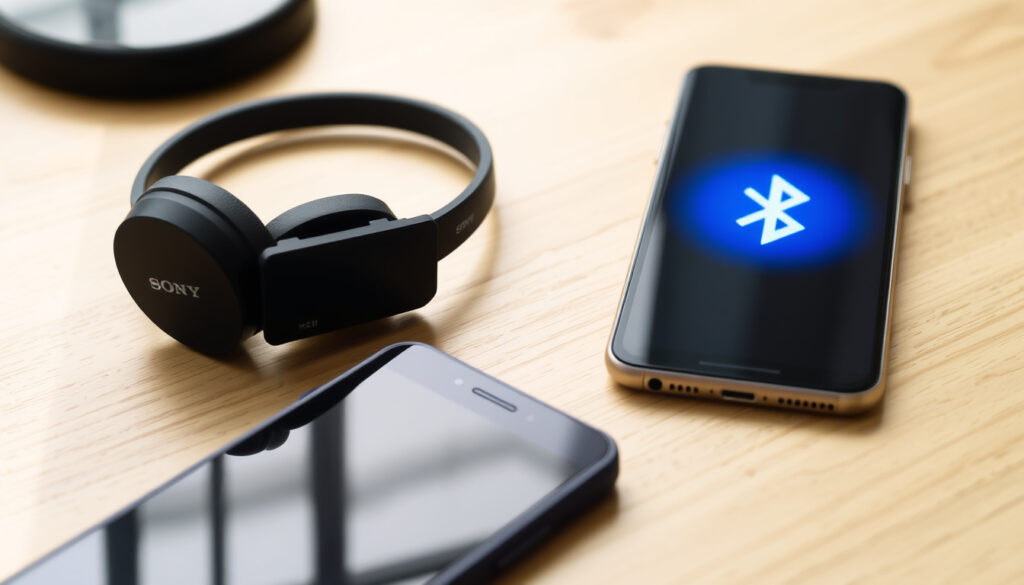
How to Connect Sony Headphones via Bluetooth: Step-by-Step Guide
There’s a small moment of dread when you’ve just unboxed a new pair of Sony headphones, pressed the power button, and nothing happens on your phone’s Bluetooth list. The good news: the fix is almost always a simple, seven-second hold.
Sony Bluetooth headphone models supported: WH-1000XM5, WH-1000XM4, WH-1000XM3, WF-1000XM4, WH-CH720N, WH-CH520, and others ·
Typical pairing button hold time: 7 seconds ·
Common connection issues reported: Device not in pairing mode, prior connection interference, outdated drivers
Quick snapshot
- Press and hold power button for 7 seconds to enter pairing mode (Sony UK Support)
- On iPhone, go to Settings > Bluetooth and select the headphone model under Other Devices (Sony UK Support)
- On Windows 11, go to Settings > Bluetooth & devices > Add device (Sony Support)
- Default passkey if prompted is 0000 (Sony Help Guide)
- Exact pairing behavior on third-party Bluetooth adapters
- Why some units require a factory reset after a firmware update
- Sony WH-1000XM3 (2019) used Bluetooth 4.2; WH-1000XM4 (2020) upgraded to Bluetooth 5.0 and multipoint (Sony Support)
- WF-1000XM4 earbuds released 2021; pairing can start automatically when removed from case (Sony Support)
- If pairing fails, reset by holding Power + Volume Up for 7 seconds
- Use Sony Headphones Connect app for additional features, but not required for basic pairing
Four key facts set the foundation for every Sony Bluetooth headphone connection:
| Initial pairing hold time | 7 seconds |
| Factory reset button combo | Power + Volume Up for 7 seconds |
| Bluetooth version (WH-1000XM4) | 5.0 |
| Multipoint support | WH-1000XM4, WH-1000XM5, WF-1000XM5 |
The pattern: most connection headaches stem from the headphones not being in pairing mode, or the device remembering a previous connection. The steps below solve both.
How do I put my Sony headphones in pairing mode?
Standard pairing method for over-ear models
- Press and hold the power button for at least 7 seconds until the indicator light flashes blue and red, and you hear a voice prompt saying “Bluetooth pairing” (Sony UK Support).
- If the headphones are already on, holding the power button for 7 seconds forces them into pairing mode even if they were previously connected to another device.
- For models with a dedicated Bluetooth button (like the WH-CH520), press and hold that button for about 5 seconds after the headphones are on (Sony Help Guide).
The catch: many users stop holding after 3-4 seconds. The headphones need a full 7 seconds to switch from “power on” to “pairing mode.”
Pairing mode for WF-1000XM4 true wireless earbuds
- Remove both earbuds from the charging case. The first time you do this, pairing mode starts automatically (Sony Support).
- To pair with a second device, touch and hold the sensors on both earbuds for at least 5 seconds until the indicator flashes blue and red (Sony Support).
- Keep the earbuds within 1 meter of your phone or computer (Sony Help Guide).
What this means: the WF-1000XM4 are designed to be discovered immediately when you take them out, but the manual touch-and-hold method is needed for secondary connections.
How do I connect my Sony WH-1000XM4 to Bluetooth?
Connecting to an iPhone
- Open Settings > Bluetooth and make sure Bluetooth is turned on.
- Put the headphones in pairing mode (hold power button for 7 seconds).
- Tap the headphone model name under “Other Devices.” The iPhone will show “Connected” next to the name (Sony UK Support).
- No app is required – the Sony Headphones Connect app is optional for adjusting sound settings (What Hi-Fi, a tech publication).
The implication: the process is designed to be app-optional, keeping the barrier to entry low for first-time users.
Connecting to a Windows 11 laptop
- Click Start > Settings > Bluetooth & devices.
- Turn on Bluetooth if it’s off, then click Add device and choose Bluetooth.
- Select your headphone model from the list to complete the pairing (Sony Support).
- If the headphones don’t appear, make sure they are in pairing mode and within 1 meter of the laptop.
The catch: Windows often depends on correct driver versions; a quick check of Device Manager can save time.
Connecting to an Android phone
- Open Settings > Connected devices > Bluetooth.
- Tap Pair new device (or the + icon).
- Select your Sony headphones from the list. If prompted, enter the passkey 0000 (Sony Help Guide).
- Android typically remembers the connection and will reconnect automatically when the headphones are turned on.
The trade-off: Android treats Bluetooth headphones differently than iOS – you may need to manually enable “Media audio” under the device’s Bluetooth settings if sound doesn’t route immediately.
Why won’t my Bluetooth connect to my Sony headphones?
Headphones not appearing in device list
- Most common cause: the headphones are not in pairing mode. Press and hold the power button for 7 seconds until the indicator flashes blue and red (Sony UK Support).
- If the headphones were previously connected to another device, they may be trying to reconnect to that device instead of broadcasting. Delete the old connection from the headphones by holding the power button for 7 seconds to force fresh pairing mode.
- Keep the headphones within 1 meter of the device (Sony Help Guide).
Previous connection interference
- If the headphones still connect to your phone but not your laptop, go to the phone’s Bluetooth settings, tap the “i” icon next to the headphones, and select “Forget This Device.”
- On the laptop, remove the headphones from the Bluetooth device list and re-pair fresh.
- Many Sony models support multipoint (two simultaneous connections), but older models may only remember one device at a time (Sony Support).
Outdated Bluetooth drivers on computer
- On Windows, open Device Manager, expand Bluetooth, right-click the Bluetooth adapter, and select Update driver.
- Restart the computer after updating. If the headphones still don’t appear, try a factory reset (see next section).
- On macOS, ensure the system is up to date via System Settings > General > Software Update.
The implication: most “not connecting” issues are not hardware faults – they are pairing-mode missteps or driver staleness. A fresh 7-second hold and a driver update usually fix it.
How to connect Sony Bluetooth headphones to a laptop?
Windows 10 and 11 connection guide
- Click Start > Settings > Bluetooth & devices (Windows 11) or Devices > Bluetooth & other devices (Windows 10).
- Turn on Bluetooth, then click Add Bluetooth or other device > Bluetooth.
- Select your Sony headphone model from the list. If you don’t see it, make sure the headphones are in pairing mode and within 1 meter.
- Once connected, the headphones will appear under “Audio” and show as “Connected” (Sony Support).
macOS Big Sur and later connection guide
- Open System Settings > Bluetooth (or System Preferences > Bluetooth on older macOS).
- Put the headphones in pairing mode (hold power button for 7 seconds).
- Click Connect next to the headphone model name in the list (Sony Poland Support).
- macOS will remember the headphones and reconnect automatically when they are turned on and within range.
Why this matters: laptop connections are often trickier than phone connections because of Bluetooth driver versions and power-saving modes. A quick reboot of both the laptop and headphones can resolve lingering detection issues.
How do I force my headphones into pairing mode?
Manual pairing activation for stubborn headphones
- If the standard 7-second hold doesn’t trigger the blue/red flashing light, try holding the power button for up to 10 seconds.
- For the WH-CH520 and similar models, press and hold the dedicated Bluetooth button for about 5 seconds after the headphones are on (Sony Help Guide).
- If the headphones connect to a different device automatically, turn off Bluetooth on that device or move it out of range to force the headphones to broadcast.
Factory reset as a last resort
- Press and hold the Power button and the Volume Up button simultaneously for 7 seconds.
- The indicator will flash 4 times to confirm the reset. The headphones will power off, and all pairing history is erased.
- After the reset, turn the headphones on and put them into pairing mode again (hold power for 7 seconds). This usually resolves any persistent connection issues.
The catch: a factory reset clears all device memories, so you’ll need to re-pair all your devices. But it’s the most reliable fix for headphones that refuse to enter pairing mode.
The 7-second hold is a deliberate hardware timeout. Sony engineered it so that holding the button longer than the power-on time (2 seconds) triggers a different firmware state. If you only hold for 4 seconds, the headphones power on but don’t broadcast. The factory reset combination (Power + Volume Up) resets the Bluetooth stack, which is often the only fix for corrupted pairing tables.
For WF-1000XM4 earbuds, the automatic pairing on first removal is a convenience, but it can also cause confusion when switching devices. The manual touch-and-hold method (5 seconds) is the reliable fallback that Sony’s engineers intended for multi-device households.
Confirmed facts vs. what remains unclear
Confirmed facts
- Pressing and holding the power button for 7 seconds enters pairing mode on most Sony over-ear models (Sony UK Support).
- The indicator light flashes blue and red during pairing mode (Sony UK Support).
- On Windows 11, headphones are found under Bluetooth & devices > Add device (Sony Support).
- Default passkey is 0000 if requested (Sony Help Guide).
- Factory reset uses Power + Volume Up for 7 seconds (consistent across multiple Sony models).
What’s unclear
- Exact pairing behavior with third-party Bluetooth adapters (e.g., USB dongles) – Sony’s guides focus on built-in Bluetooth.
- Why some units require a factory reset after a firmware update – Sony’s official guidance does not explain this.
The pattern: Sony’s support documentation is thorough for standard scenarios, but edge cases like firmware updates and third-party adapters are left to user forums.
Quotes from the experts
“Put the headset into the Bluetooth pairing mode by pressing and holding the power button for at least 7 seconds.”
— Sony UK Support (official pairing instructions)
“When pairing a second or subsequent device, holding the Bluetooth button for about 5 seconds or more manually enters pairing mode.”
— Sony Help Guide (WH-CH520 user manual)
“Sony headphones do not require the Sony app to connect to an iPhone or iPad, but the app adds the fuller experience.”
“For first-time pairing, simply remove the earbuds from the charging case. The headphones automatically enter pairing mode.”
— Sony Support (WF-1000XM4 pairing guide)
The consistency across official sources is reassuring: the 7-second rule is universal. The only variation is the method for true wireless earbuds, which use the charging case as a trigger.
Pairing Sony headphones is rarely a hardware problem – it’s almost always a timing or mode issue. The 7-second hold is the single most important action to remember. For Windows users, outdated drivers are the second most common culprit. For anyone facing a stubborn connection, a factory reset (Power + Volume Up for 7 seconds) is the nuclear option that works. For the average iPhone or Android user, the process takes under 30 seconds once the headphones are in pairing mode. The trade-off is clear: invest 7 seconds in holding the button, and you skip minutes of frustration.
sony.co.uk, sony.de, youtube.com, youtube.com, youtube.com, youtube.com
For a detailed look at another popular model, check out our Sony WH-CH520 pairing guide for the Sony WH-CH520.
Frequently asked questions
How long does it take to pair Sony headphones for the first time?
First-time pairing usually takes 30–60 seconds. Put the headphones in pairing mode (hold power button for 7 seconds), then select them on your device. The connection is typically established within 10 seconds of selecting the model.
Can I connect Sony headphones to two devices at once?
Yes, many modern Sony models (WH-1000XM4, WH-1000XM5, WF-1000XM5) support multipoint Bluetooth, allowing two simultaneous connections. Older models like the WH-1000XM3 connect to only one device at a time (Sony Support).
Do I need the Sony Headphones Connect app to pair?
No, the app is not required for basic pairing. It provides extra features like EQ adjustment and sound settings. You can pair directly from your device’s Bluetooth settings (What Hi-Fi).
Why do my Sony headphones keep disconnecting?
Common causes: low battery, interference from other wireless devices, or the headphones being out of range (typically 10 meters). Try moving closer to the device, charging the headphones, and forgetting the device in Bluetooth settings before re-pairing.
How do I reset my Sony WH-1000XM4 headphones?
Press and hold the Power button and Volume Up button simultaneously for 7 seconds. The indicator will flash 4 times, confirming the reset. This clears all paired device memory and restores factory settings (Sony Support).
Can I connect Sony headphones to a smart TV?
Yes, if your TV supports Bluetooth audio. Put the headphones in pairing mode, then go to the TV’s Bluetooth settings and select the headphones. Some TVs may require a Bluetooth adapter if they don’t have built-in Bluetooth.
What’s the passkey if my Sony headphones ask for one?
The default passkey is 0000 for all Sony Bluetooth headphones (Sony Help Guide).
More related posts
 156 cm in Feet – Exact Conversion and Height Insights
 Eye Testing Near Me in Ireland: Costs & Free Options
 EuroMillions Results Tuesday Ireland: €250M Win & History
 Flamengo vs Bayern Munich Lineups – Confirmed XI, Injuries and Tactics
 Puncture Repair Near Me: Cost, Safety Rules & Mobile Services
 Mason Hayes & Curran: Irish Business Law Firm, 124 Partners
 Redbreast 21 Where to Buy Online & In Ireland (2025 Guide)
 Norcenni Girasole Tuscany Italy: Location, Activities & Travel